Restarting a CSC Component in ArgoCD
Warning
This procedure contains steps that may affect the system in critical ways. If you are unsure about any of the steps described here, contact support personnel.
Overview
Most components on the Rubin system run as containers on a Kubernetes cluster and have a maximum amount of resources they can use. If a particular CSC exceeds that limit – for example, overconsumption of memory – the Kubernetes cluster terminates the container for that CSC. Observers at the summit typically notice this on LOVE as a lack of heartbeats or a failure to connect to subsystems within the CSC, which can be found in the message logs on the ASummary State View.
If there is no communication with the CSC, but lower-level controllers are operational – i.e., the cRIOs are working properly – a reset of the component in ArgoCD is needed to bring the CSC back online.
Some common examples for when a CSC restart is needed:
Power glitches or outages. These incidents may cause CSCs to fault or lose heartbeats due to a loss of communication – e.g., in-dome CSCs like the Calibration Systems.
Deploying a new version of a CSC – e.g.,
mtmounttomtmount-ccw-only.The CSC is
OFFLINE.
Before continuing with this procedure, always contact appropriate personnel – support scientists, engineers, etc. – to verify whether a CSC restart is needed. If there is an alternate solution, attempt that first.
Note
This document does not include the procedure to change versions of specific CSCs
(e.g., switching mtmount to mtmount-ccw-only or mtmount-sim).
Contact a support scientist for assistance.
Error Diagnosis
The initial indication that a CSC may need to be restarted typically presents as one or more of the following symptoms on LOVE:
Missing heartbeats on the ASummary State View.
Failure to connect to subsystems within the CSC.
The CSC appears as
OFFLINE.Lower-level controllers – such as cRIOs – remain operational, but the CSC itself is unresponsive.
Procedure Steps
Announce on the Slack channel #summit-announce that you will be restarting CSCs in ArgoCD.
Identify which CSC component needs to be reset and send it to
OFFLINEwith theset_summary_state.pycommand:set_summary_state.py¶data: - [MTPtg, OFFLINE]
Verify that the CSC is offline via the ASummary State View. The component should appear similar to the example below with MTPtg.
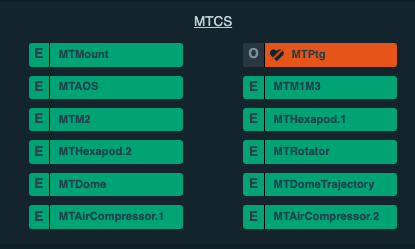
LOVE Summary State View showing MTPtg in the
OFFLINEstate.¶Log into ArgoCD using your Keycloak credentials.
Notify personnel on Slack that you will be accessing an ArgoCD environment to reset a CSC component. There are three different environments:
Summit (use for resetting CSCs): summit-lsp.lsst.codes/argo-cd.
Base Teststand (BTS).
Tucson Teststand (TTS).
Once connected to ArgoCD, navigate to the appropriate application that houses the CSC that needs to be reset:
Simonyi CSCs: simonyitel
AuxTel CSCs: auxtel
Note
M1M3 and MTCamera CSCs are not in Kubernetes and require different procedures.
The application consists of several jobs that connect to the CSC components. Locate the job with the same name as the CSC and verify that its status is
OFFLINE. The table below describes the three possible job status indicators in ArgoCD.ArgoCD Job Statuses¶ Status
Description
Example Status
Running
The normal state of a job running within the application. It consists of a blue square with a white spinning wheel. Sometimes there is text saying
Progressing 1 pods.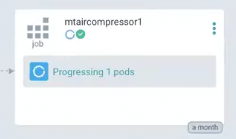
A job in the
Runningstate.¶Offline
When the CSC is offline, the job indicates that it has completed. There is a green checkmark without any errors showing.
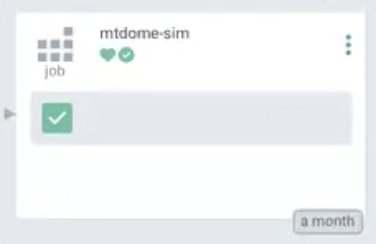
A job in the
Offlinestate.¶Failed
While rare, some jobs may end up in a failed state. If this happens, contact appropriate personnel. The job has a red square with a white cross in it.
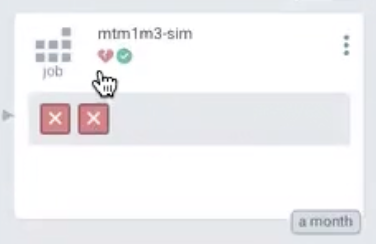
A job in the
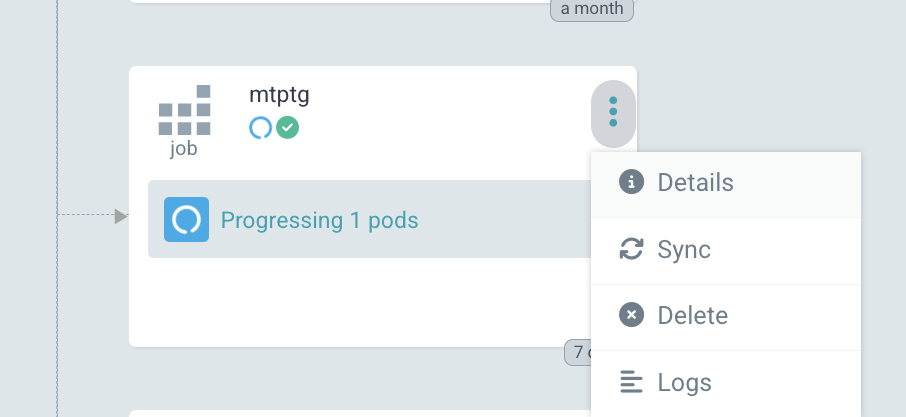
Failedstate.¶To reset the job, it must first be deleted from the application. Press the three vertical dots on the right-hand side of the job and select Delete.
Warning
Under no circumstances should you delete the application.
A prompt appears confirming whether you wish to delete the job. Type the name of the job on the line provided – e.g.,
mtptg– and select OK. The job is now removed from the application.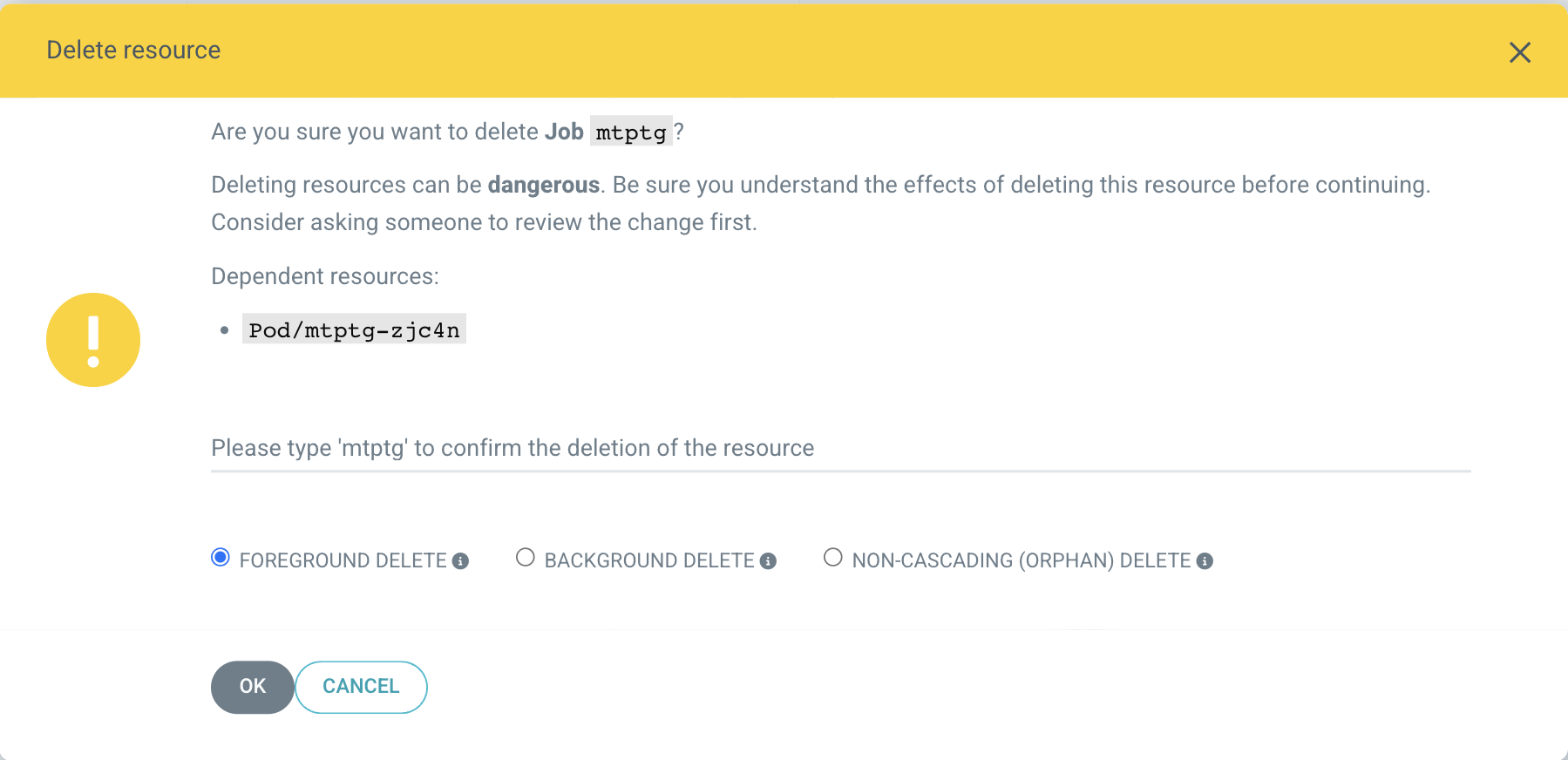
Delete Resource pop-up window.
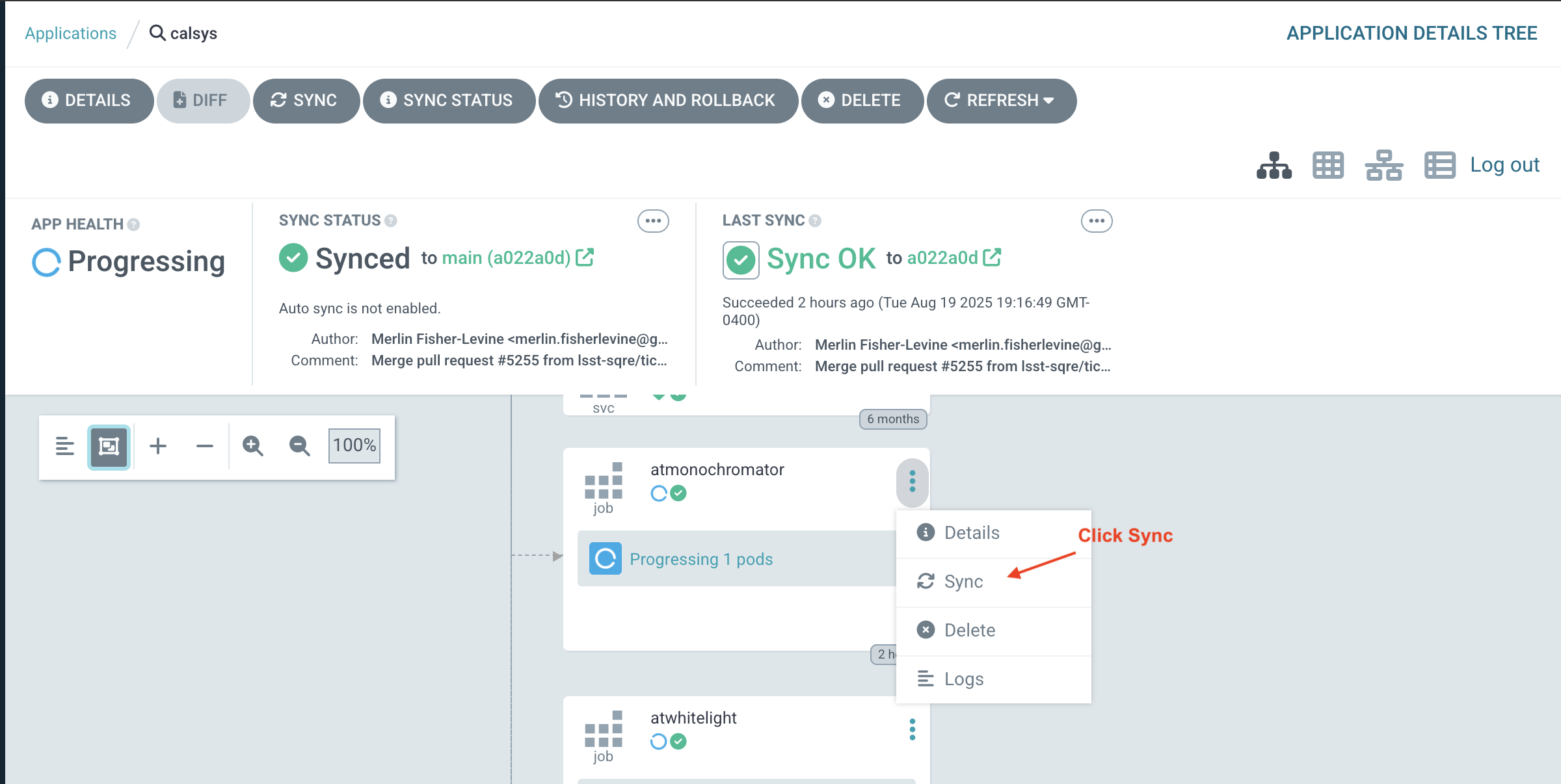
To reload the job, press the three vertical dots on the right-hand side of the job and select SYNC.
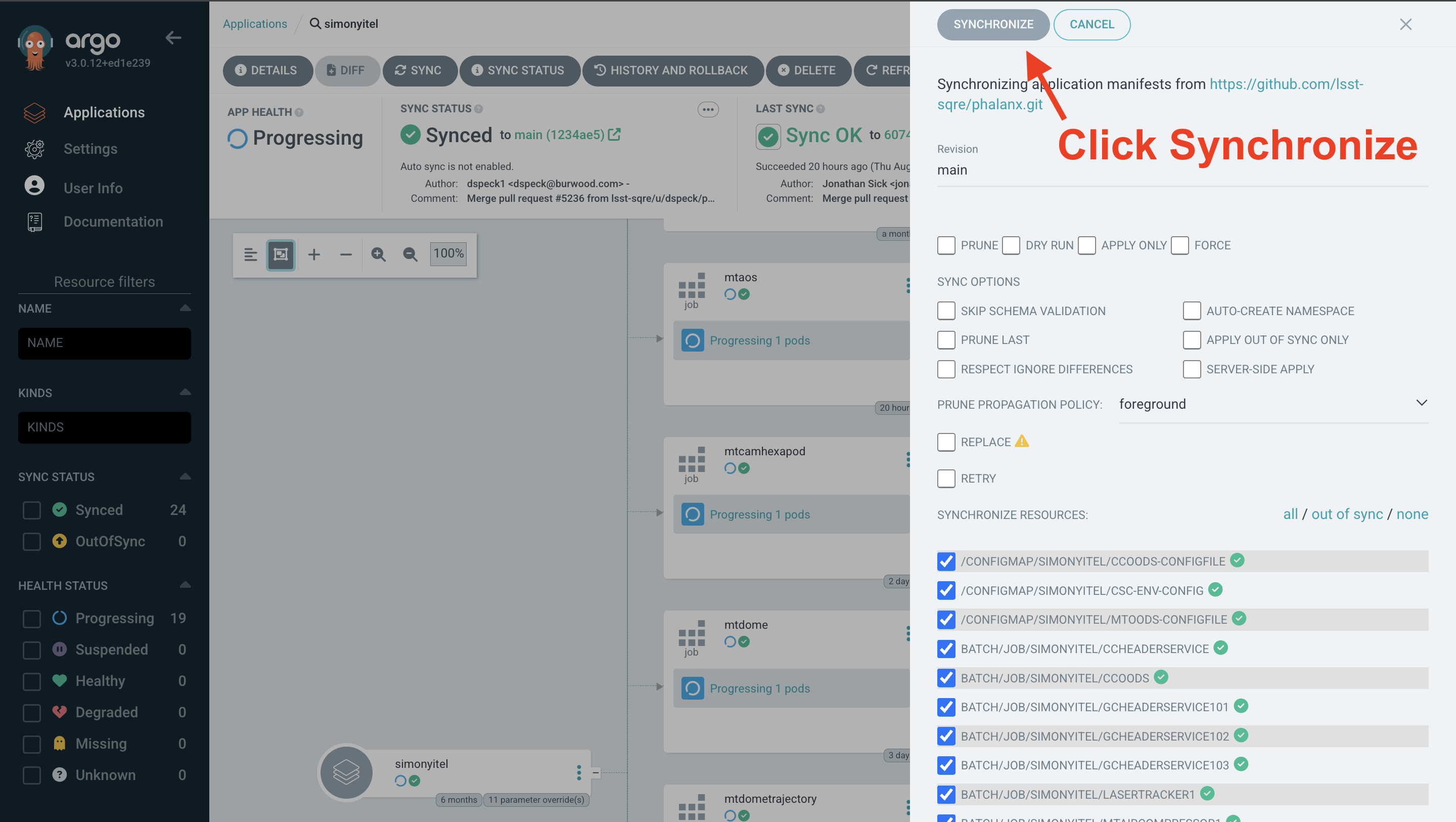
Once the sidebar appears, select the SYNCHRONIZE button at the top.
If the deleted job does not reappear in the application, see Syncing a Job That is Not Visible below.
The job should now reappear with its status as
Running. After waiting a couple of minutes – some CSCs take longer than others – the CSC on LOVE should change fromOFFLINEtoSTANDBY. Re-enable the CSC and the heartbeats should return along with proper connections to the lower-level controllers.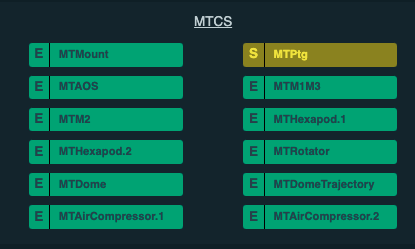
LOVE Summary State View showing MTPtg in
STANDBY.
Post-Condition
The CSC is in
STANDBYorENABLEDstate on the LOVE ASummary State View.Heartbeats have returned.
Connections to the lower-level controllers are restored.
Contingency
If the procedure was not successful, report the issue in #summit-announce and contact appropriate support personnel. Activate the Out of Hours Support if needed.
Syncing a Job That is Not Visible
If the job you deleted does not show up in the application:

The application view when the deleted job is not visible.
Go to the SYNC button at the top left of the application view.
Select the jobs you want to sync.
Press SYNCHRONIZE.
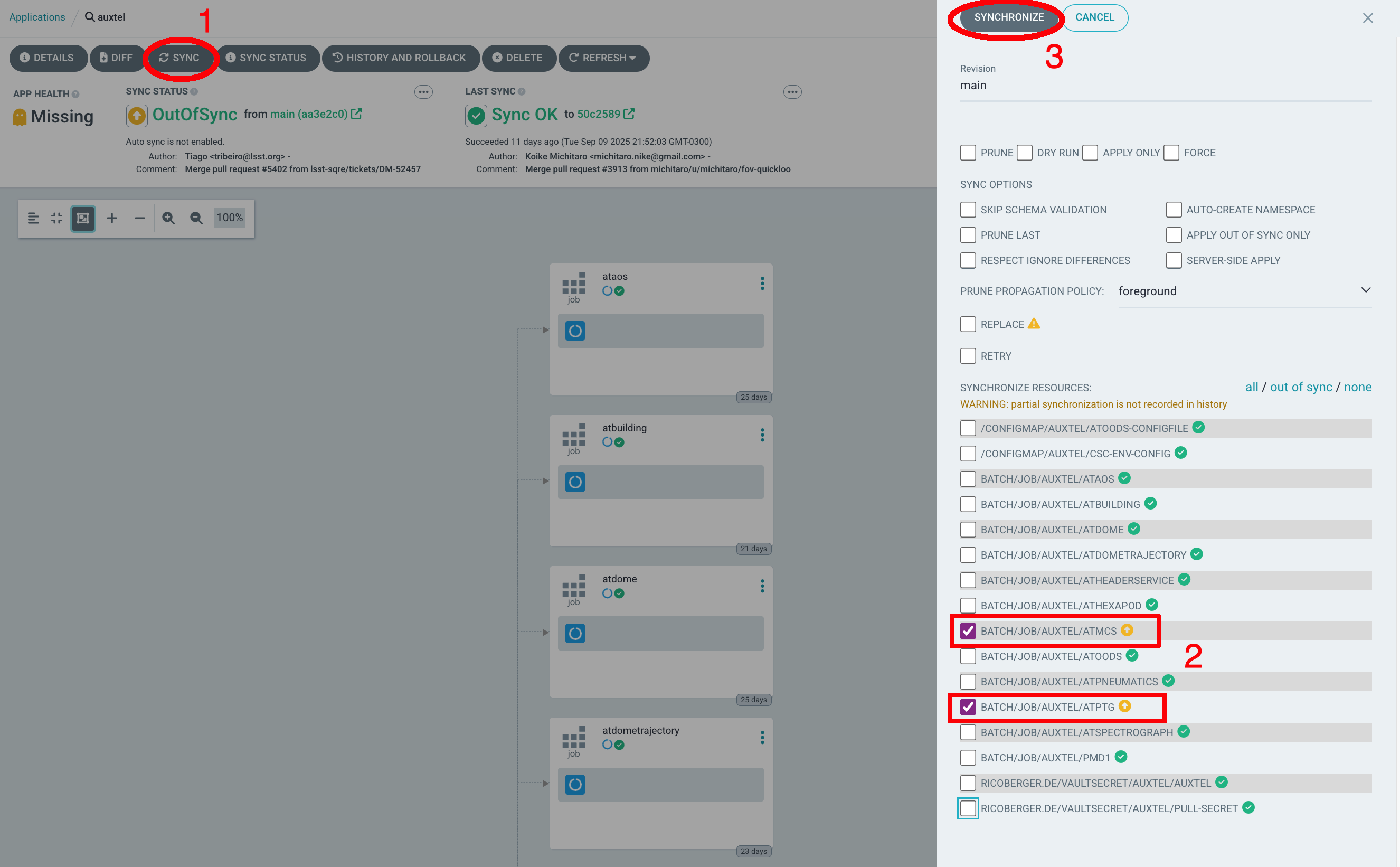
Using the general SYNC button when the job is not listed within the application.