MT M2/Rotator/Hexapods/Dome EUI Access
Overview
This document explain how to access the M2, Camera Rotator, Camera / M2 Hexapod, and Dome EUI.
Prerequisites
To access the EUIs, the user must have the following credentials:
Added to the hexrot and saluser IPA groups.
Access to the
hexrot‑vm01.cp.lsst.orgvirtual machine.
To request access, please file a Jira ticket in the IT Helpdesk Support page project.
Setup to access the MT-M2/Rotator/Hexapods/Dome EUI
Safety check – Verify no one else is using the subsystem’s EUI. Be mindful that another session may be open, and mouse motions or commands will come from another user. Consult the relevant Slack channels:
M2 –
#m2‑worklogHexapods & Rotators –
#hexrot‑worklogMT Dome –
#mtdome‑worklog
Announce your intention to issue commands in the appropriate channel.
Clear browser cache for
ls.stto avoid loading stale links. If this is your first connection, use the URL that points tohexrot‑vm01.cp.lsst.org. The link will get you to thevcenter.cp.lsst.org. After typing your IPA credentials, you can log in to the virtual machine. From the control room linux machine usessh -Yand run the command to access the EUIs.
Connecting to the MT-M2/Rotator/Hexapods/Dome-EUI
There are two different methods to access the EUIs for the M2, Camera Rotator, Camera/M2 Hexapods, or Dome EUIs:
If you are on a Linux workstation at the summit, you can directly access the EUIs with ssh commands.
If you are using a non-Linux workstation (e.g., a personal laptop or the LSBF workstation), you will need to access the EUIs using the virtual machine.
Summit Access is Required!
To access the EUIs you will need to be connected to the summit WiFi directly or using VPN access.
Linux Workstation Access (on Summit)
Open a terminal on the Linux Workstation and log into
hexrot‑vm01.cp.lsst.orgusing your IPA credentials.ssh [IPAUsername]@hexrot-vm01.cp.lsst.org ### Follow instructions and enter your password. ###
You will have successfully logged in once you see the command line display something similar to the following:
(py313) -bash-5.1$.Once logged in, proceed to Step (2) of the Launching the EUI procedure.
Virtual Machine Access
Log in to the virtual machine (http://ls.st/hexrot-vm01) using your IPA credentials.
If you can see a password input window for another person, click the button on the bottom-right.
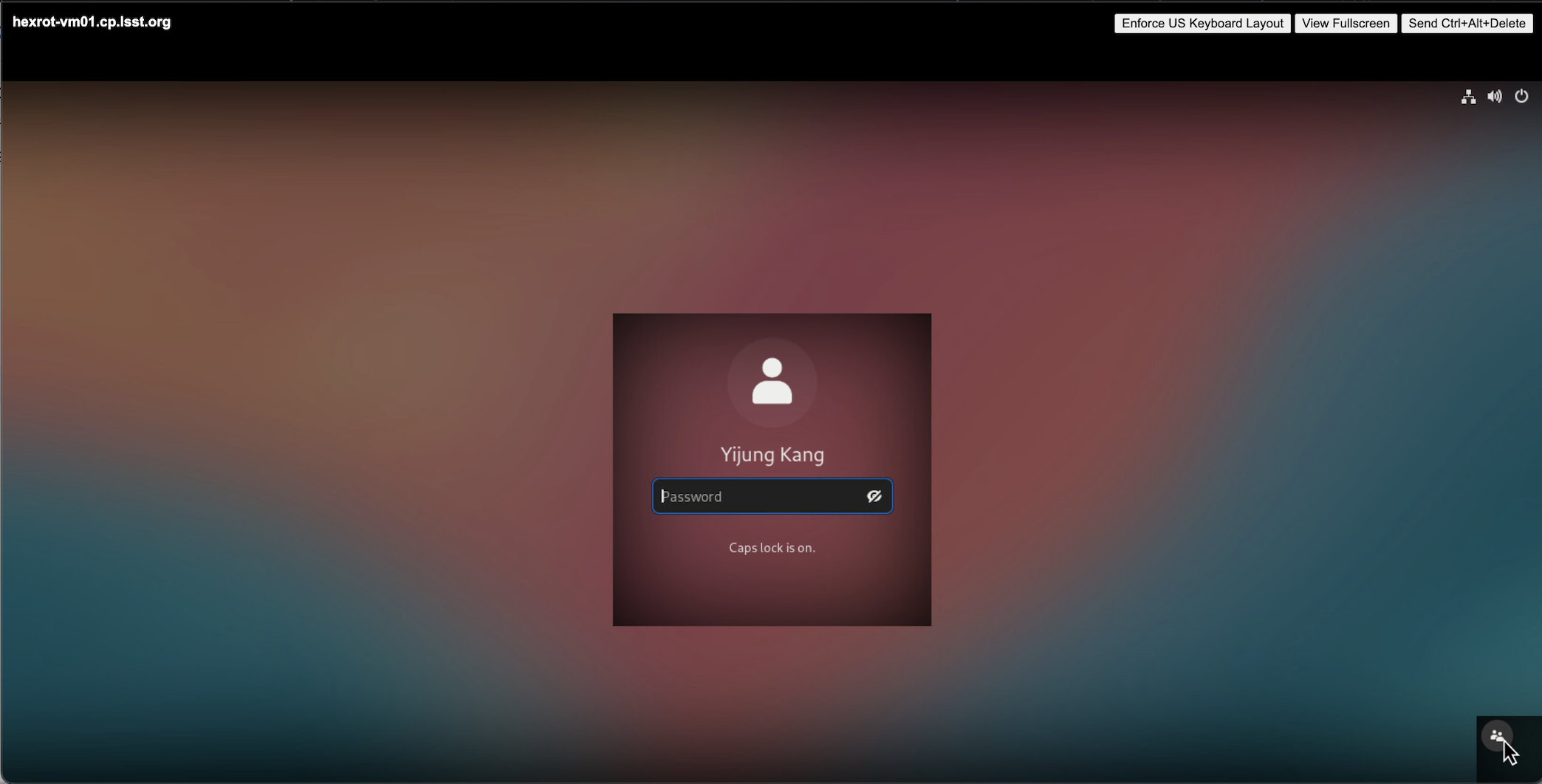
Find your name and select your IPA login credentials on the list. Click “Not listed” if there is not your name on the list. And then enter your username without
@lsst.org
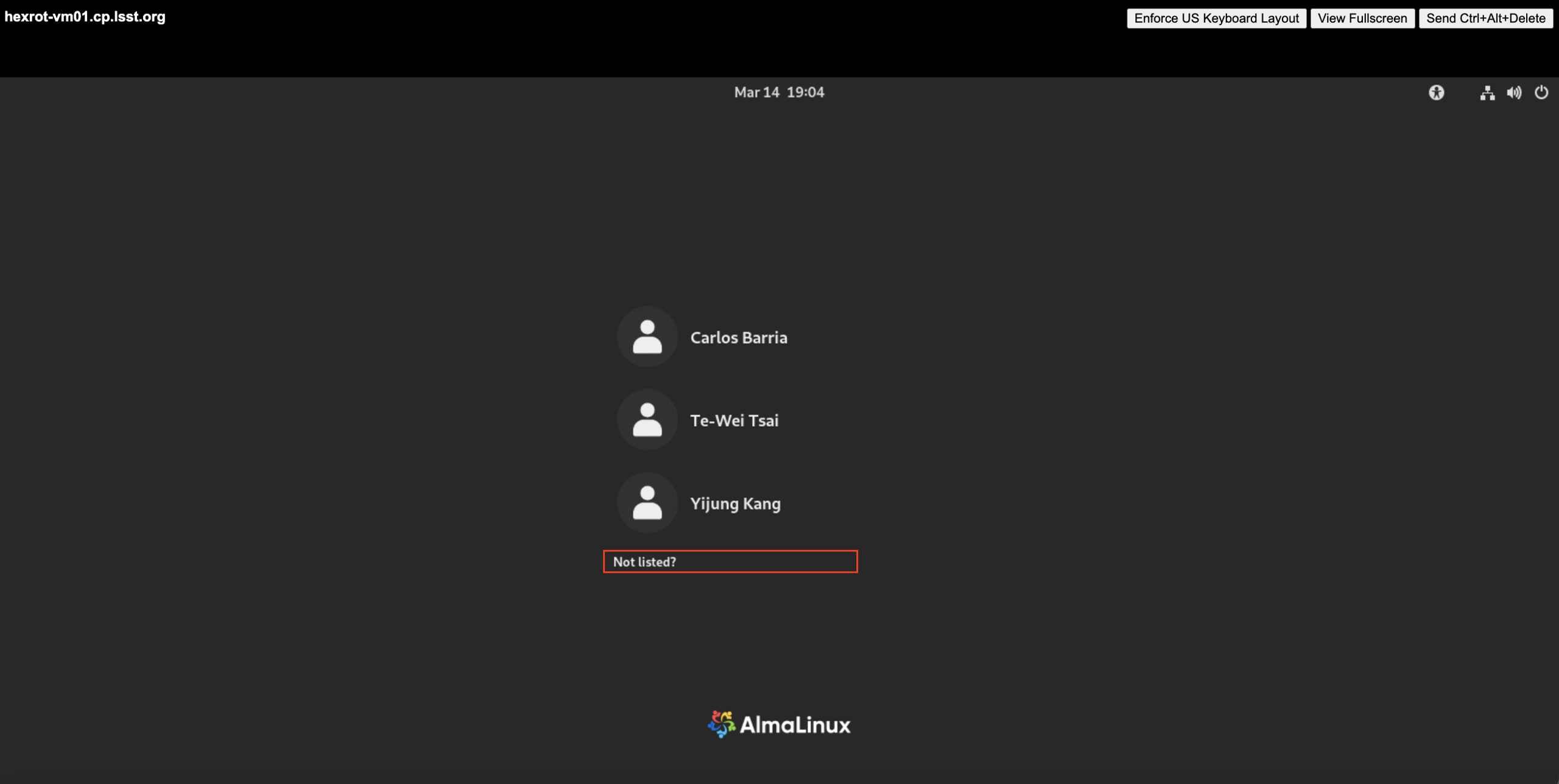
Then enter your IPA password.
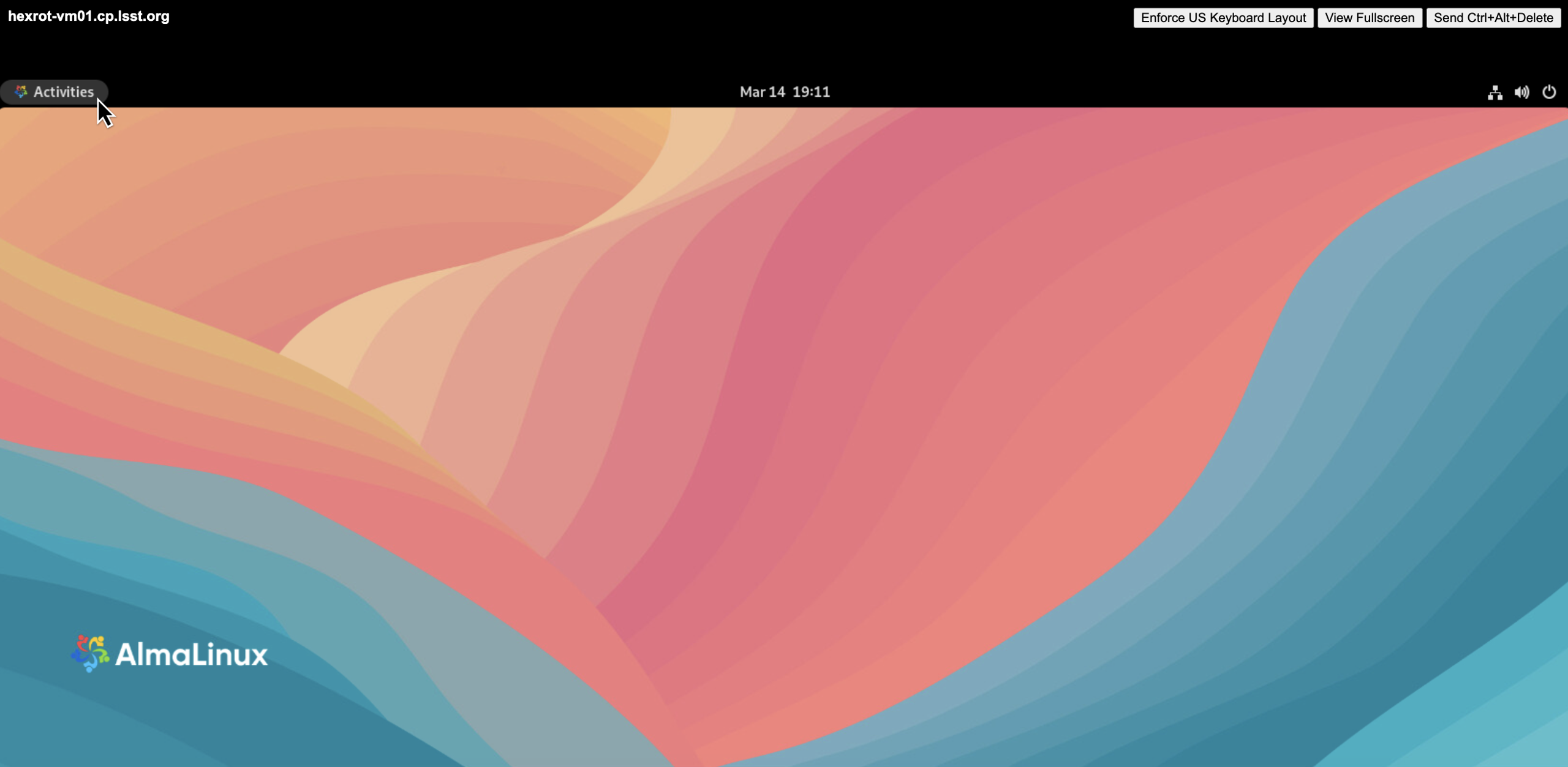
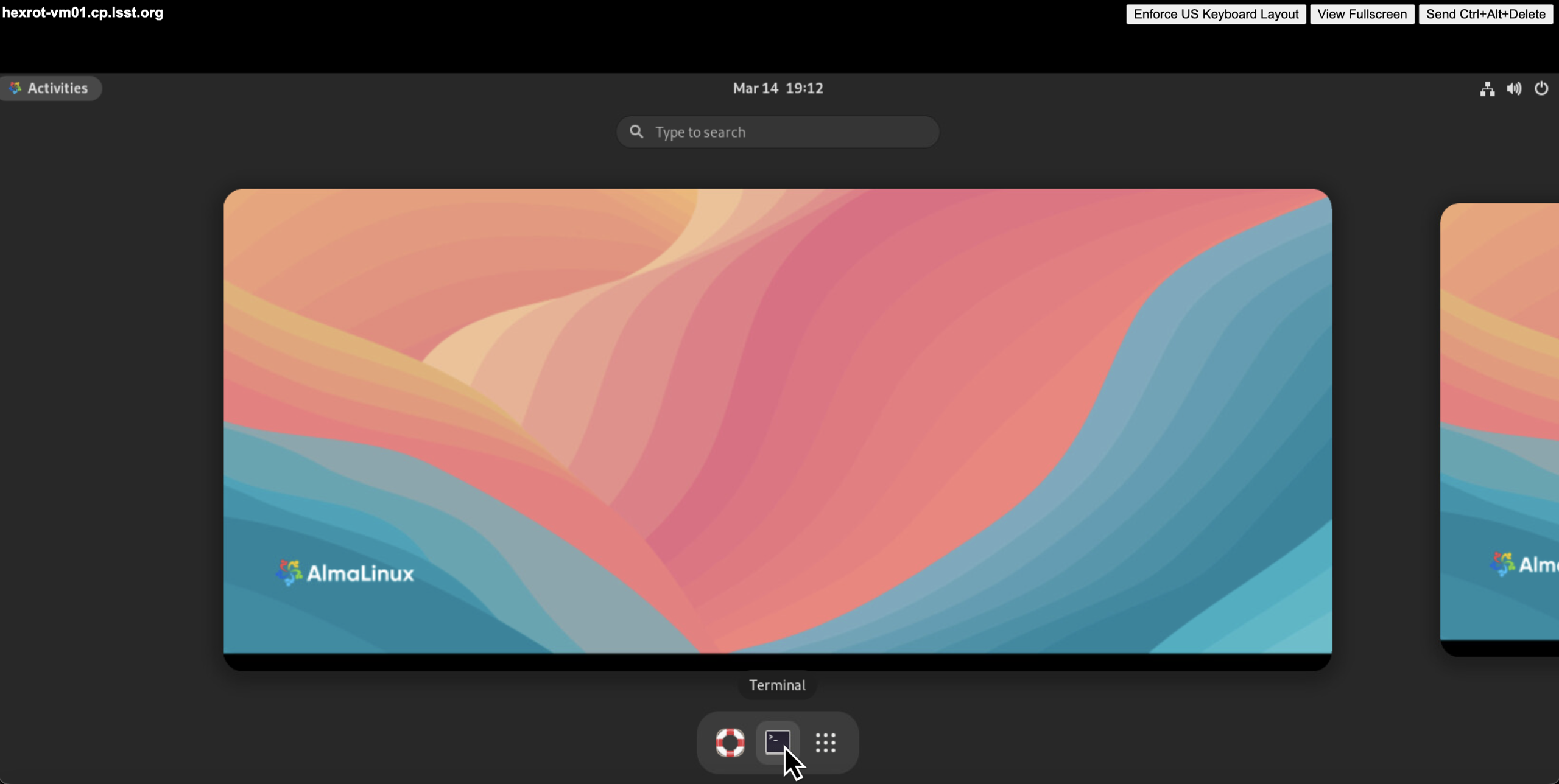
Open a terminal. Click Activities → Terminal (icon in the centre of the bottom menu).
Launching the EUI
Run the appropriate EUI command. All GUIs reside under
/rubin:# M2 GUI /rubin/mtm2/python # Rotator GUI /rubin/rotator/python # Hexapod GUI /rubin/hexapod/python # MT Dome GUI /rubin/dome/python
Once you have opened the appropriate EUI Python shell program, the command line should look similar to the following layout: (py311) [(username)@hexrot-vm01 ~]$.
Use one of the following terminal commands to access the appropriate EUI:
M2 EUI –
run_m2guiCamera Rotator EUI –
run_rotguiCamera Hexapod EUI –
run_hexgui 1M2 Hexapod EUI –
run_hexgui 2MT Dome EUI –
run_mtdomegui
Command‑line help
$ run_rotgui -h     # display help for Rotator GUI
$ run_hexgui -h     # display help for Hexapod GUI
Simulation Mode
If you wish to practice without affecting the live system, launch any EUI with the -s flag.
$ run_rotgui -s # start Rotator EUI in simulation mode
Handling another user’s active session
If a process is already running, identify its owner and request permission before terminating it.
# Check if M2 EUI is running
$ ps -aux | grep run_m2gui

# Check if Camera Rotator EUI is running
$ ps -aux | grep run_rotgui

# Check if Camera Hexapod EUI is running
$ ps -aux | grep run_hexgui

# Check if Dome EUI is running
$ ps -aux | grep run_mtdomegui

# To forcibly close a session (use with care!)
$ sudo kill -9 <PID>
<PID> is the process ID returned by the ps command. If an active session is running, running another will result in an EUI that will close in about 30 seconds or not connect.
Closing the EUI
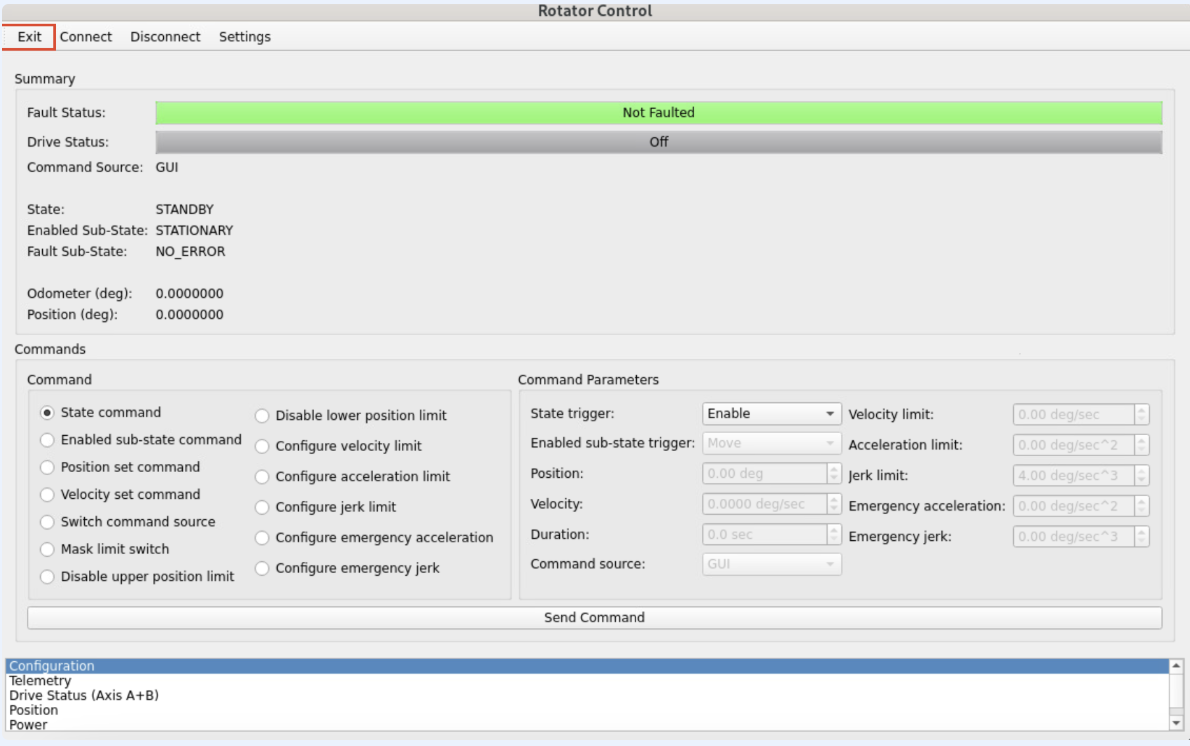
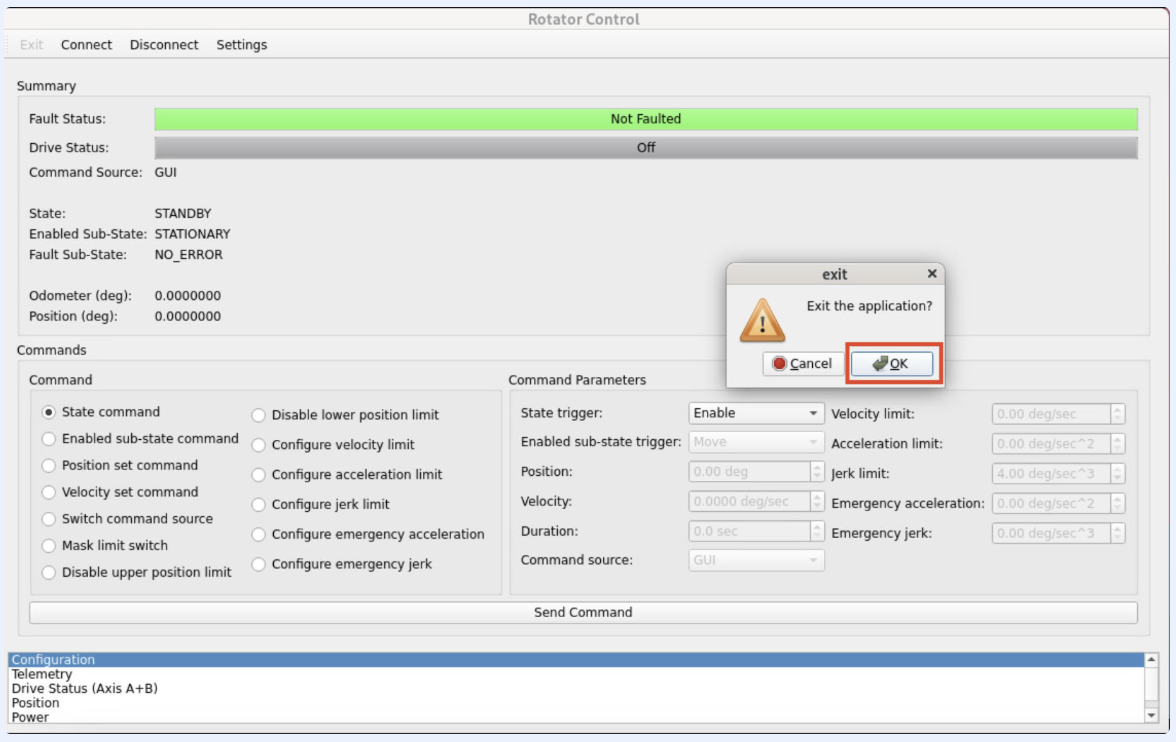
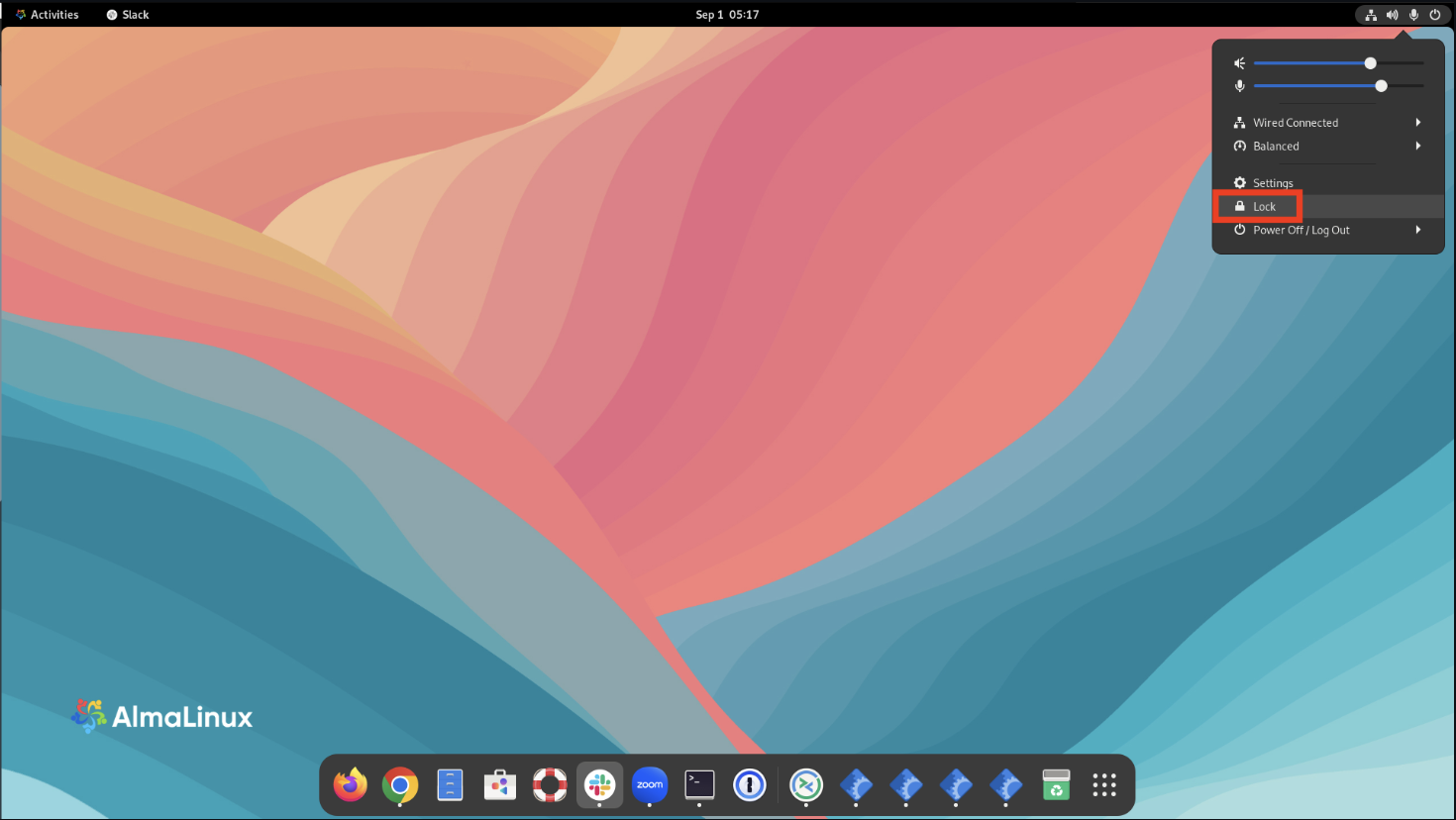
After finishing, select Exit from the menu and close the session. Then click Lock (top‑right) to end your session.
This procedure was last modified on Apr 17, 2026.