MTRotator Clear Safety Interlocks
Overview
This troubleshooting procedures serves as a guide to clear low-level interlocks when recovering the MTRotator CSC from a FAULT.
The procedure may require access to the MTRotator GUI run_rotgui (check access instructions).
Error Diagnosis
MTRotator CSC goes into
FAULTstate, but it cannot recover or cycle through CSC states from LOVE.When trying to re-enable the MTRotator CSC in ASummary State View, the following message is reported in the
ERROR CODEorMESSAGE LOG:Lower level interlock is activated
Procedure Steps
Note
Most MTRotator low-level interlocks can be cleared through the GIS GUI panel on level 2.
Before manually clearing the low-level interlocks, first try to reset the MTrotator GIS, and then attempt to re-enable the MTRotator CSC.
Transition MTRotator CSC to
STANDBY.This can be done in ASummary State View or in a ScriptQueue.
set_summary_state.py¶data: - [MTRotator, STANDBY]
Access the MTRotator GUI.
Enter the virtual machine that controls the rotator (hexrot-vm01.cp.lsst.org) with your IPA account credentials.
Accessing the Rotator GUI
Remote Access: The How to Access MT M2/Rotator/Hexapods/Dome EUI has a detailed procedure for accessing all the GUIs in the virtual machine.
Summit Access: If you are logged into a linux machine at the summit, you can enter the virtual machine using an SSH command.
Open a terminal from the ‘Activities’ tab on top left, and type the following command:
ssh -Y hexrot-vm01.cp.lsst.org
Once in the virtual machine, access the rotator using the run_rotgui command:
[(username)@hexrot-vm01 ~]$ run_rotgui
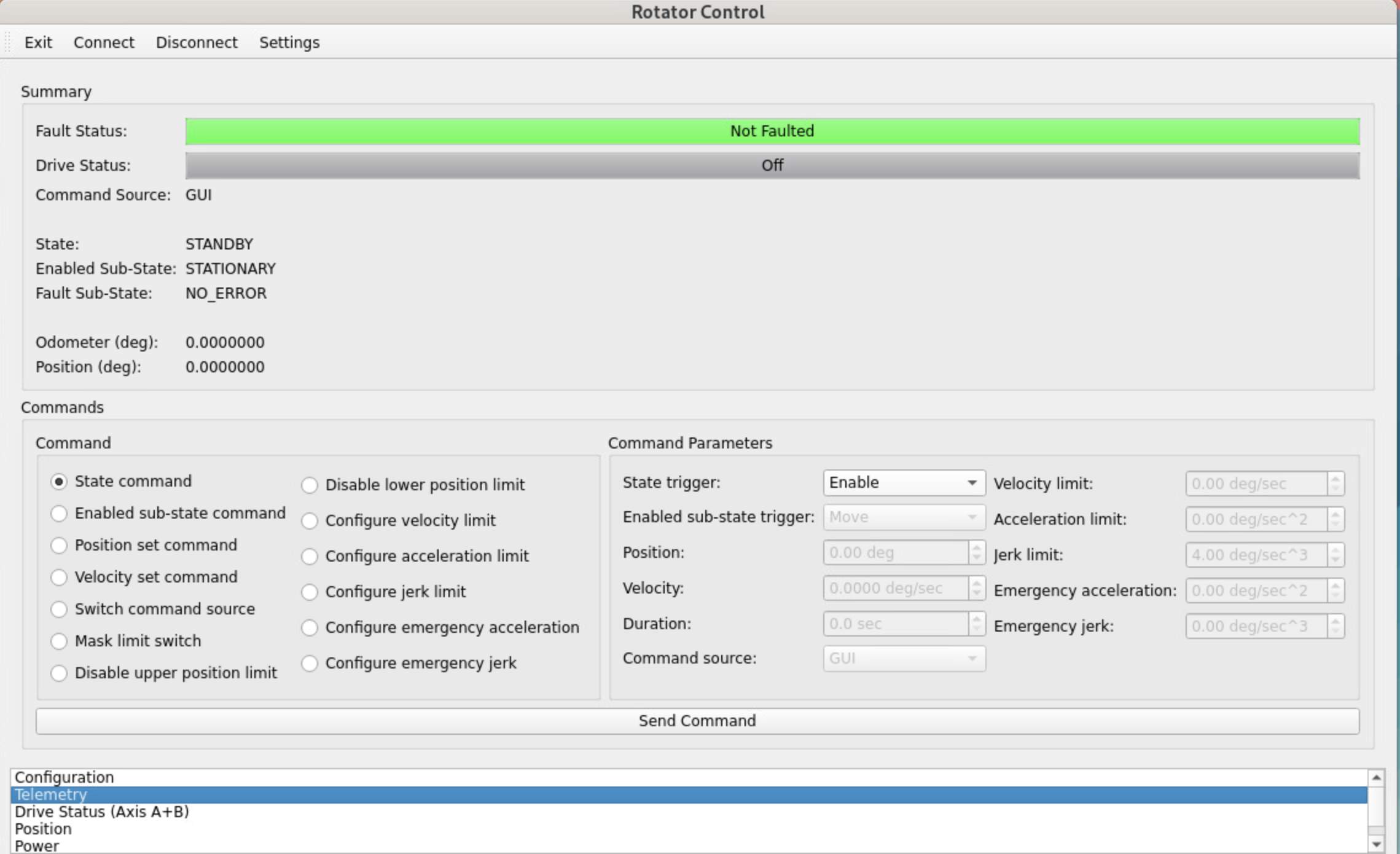
MTRotator Python GUI
Change the Command Source from CSC to GUI mode.
Once in the Rotator Control GUI, Connect to the low-level controller (top-left).
In the
Commandsection of the GUI, select Switch command source.Under the
Command Parametersgo toCommand Sourceand select GUI.Execute the command by clicking Send Command at the bottom of the GUI.
Clear Simulink/Interlock errors in MTRotator GUI.
In the
Maintab, go to theCommandstab.Under
Command, select State command.Under
Command Parameters, go toState Triggerand select ClearError.Send the command by clicking on the Send Command button.
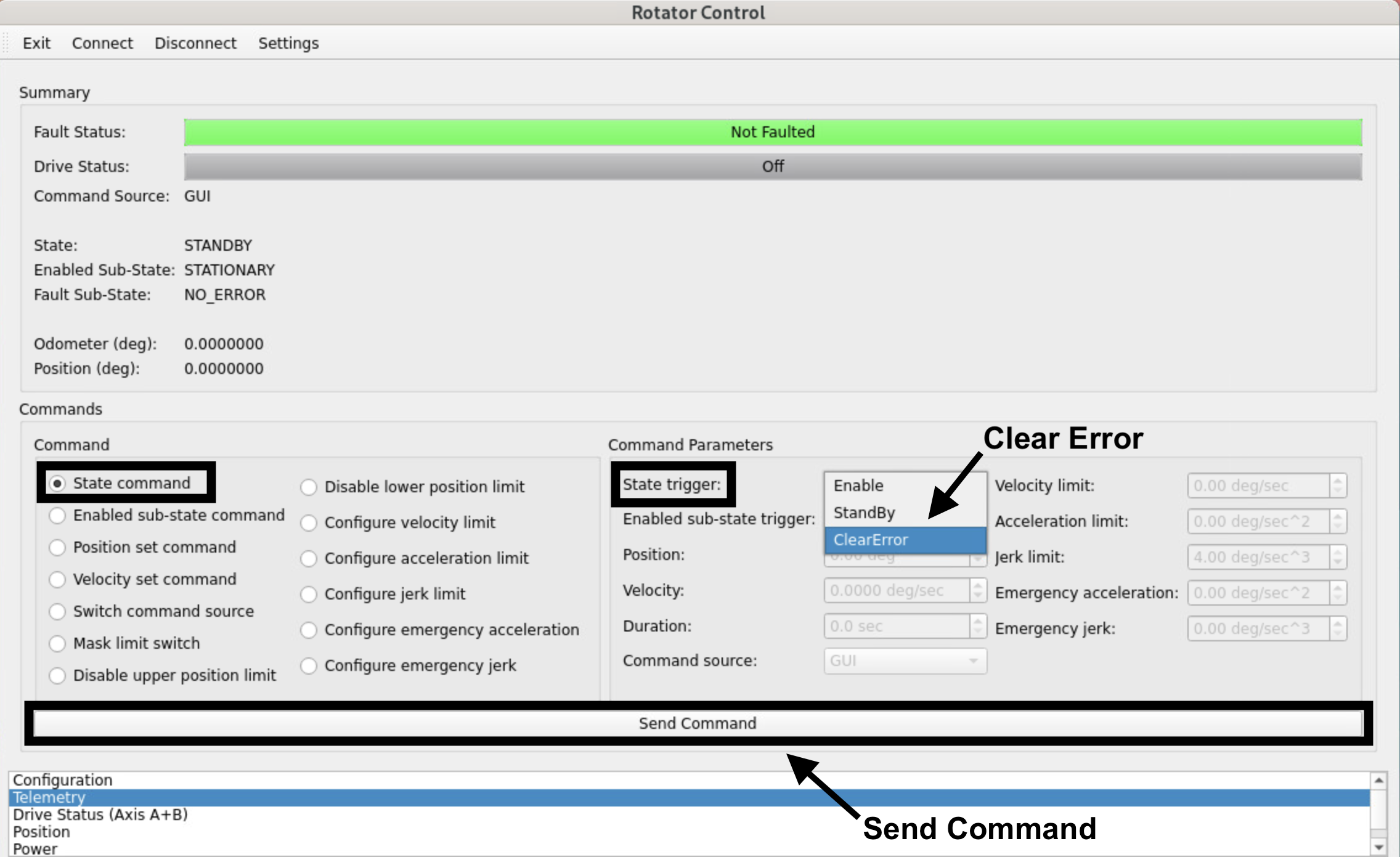
Sending ClearError Command
Telemetry Verification
Double-click the Telemetry tab at the bottom of the GUI (see image above).
- If the Safety Interlock is activated, you can find a red light next to theSafety Interlock fault with the
Application Statustab. In case of a Simulink Error, there will be red light next to the Simulink fault on the same page.
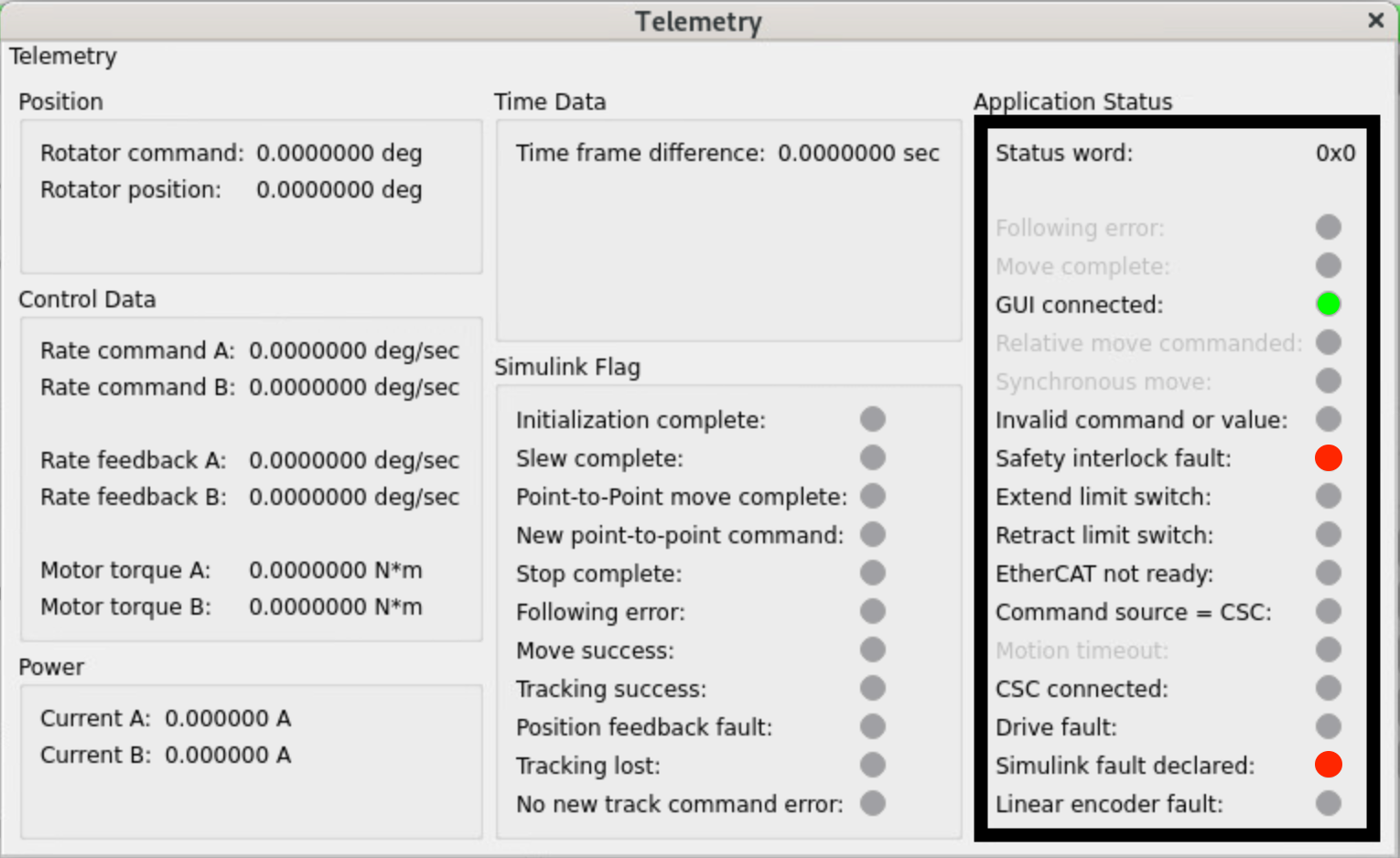
Rotator Telemetry with Faults (GUI Command Source)
When both errors are cleared, the telemetry no longer have red fault lights:
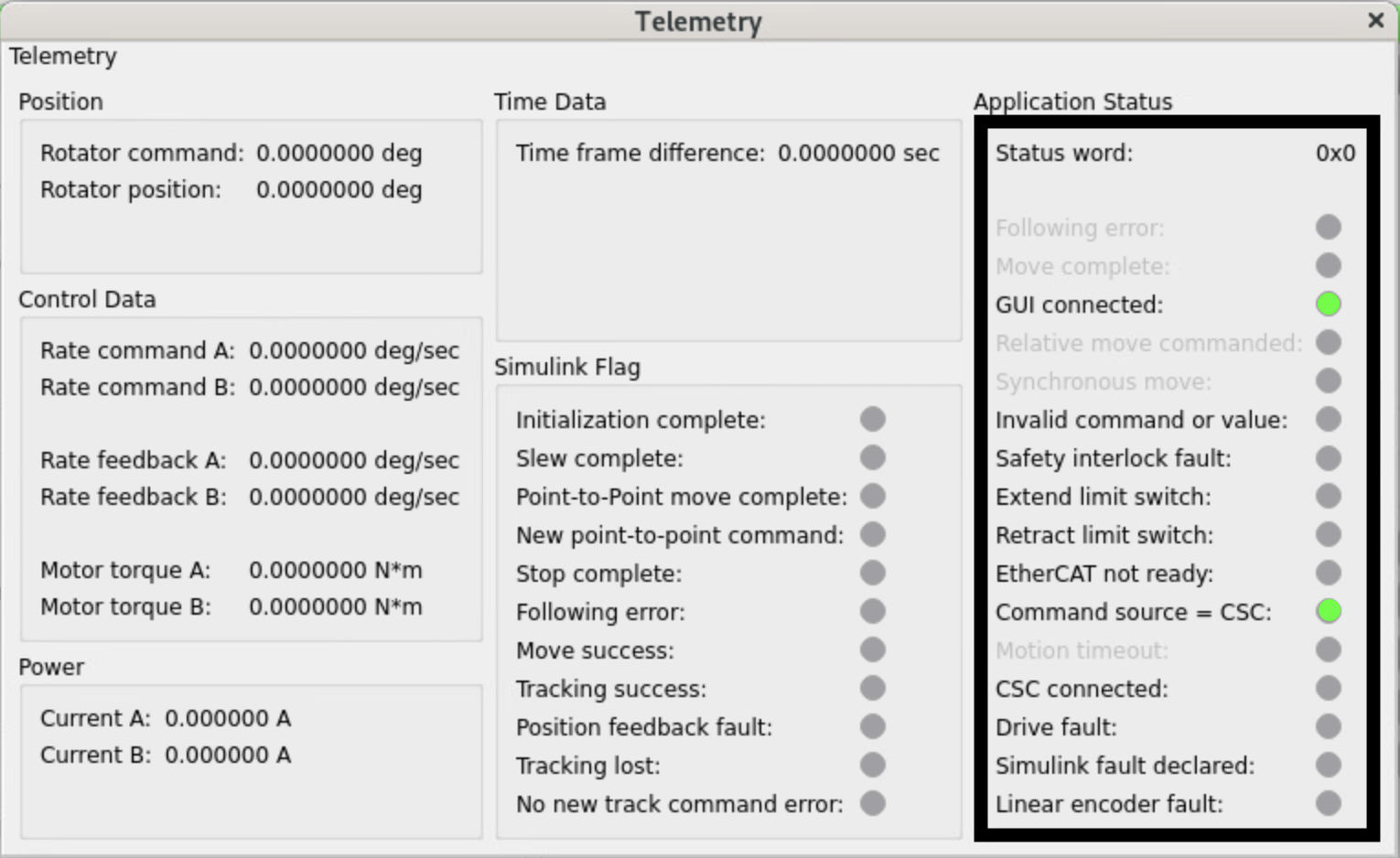
Rotator Telemetry without Faults (CSC Command Source)
Change the Command Source from GUI to CSC mode and exit the GUI.
In the
Commandsection of the GUI, select Switch command source.Under the
Command Parametersgo toCommand Sourceand select CSC.Execute the command by clicking Send Command at the bottom of the GUI.
Remember to Disconnect the low-level controller before you Exit the GUI.
Reset MTRotator in GIS GUI on Level 2.
- Select the M2Cam tab and then click Overview (default). Below the
CAM. ROTATORsection, press and hold the Reset button. A green “X” markshould appear next the theResetlabel. If it does not show, press and hold theReset button, again.
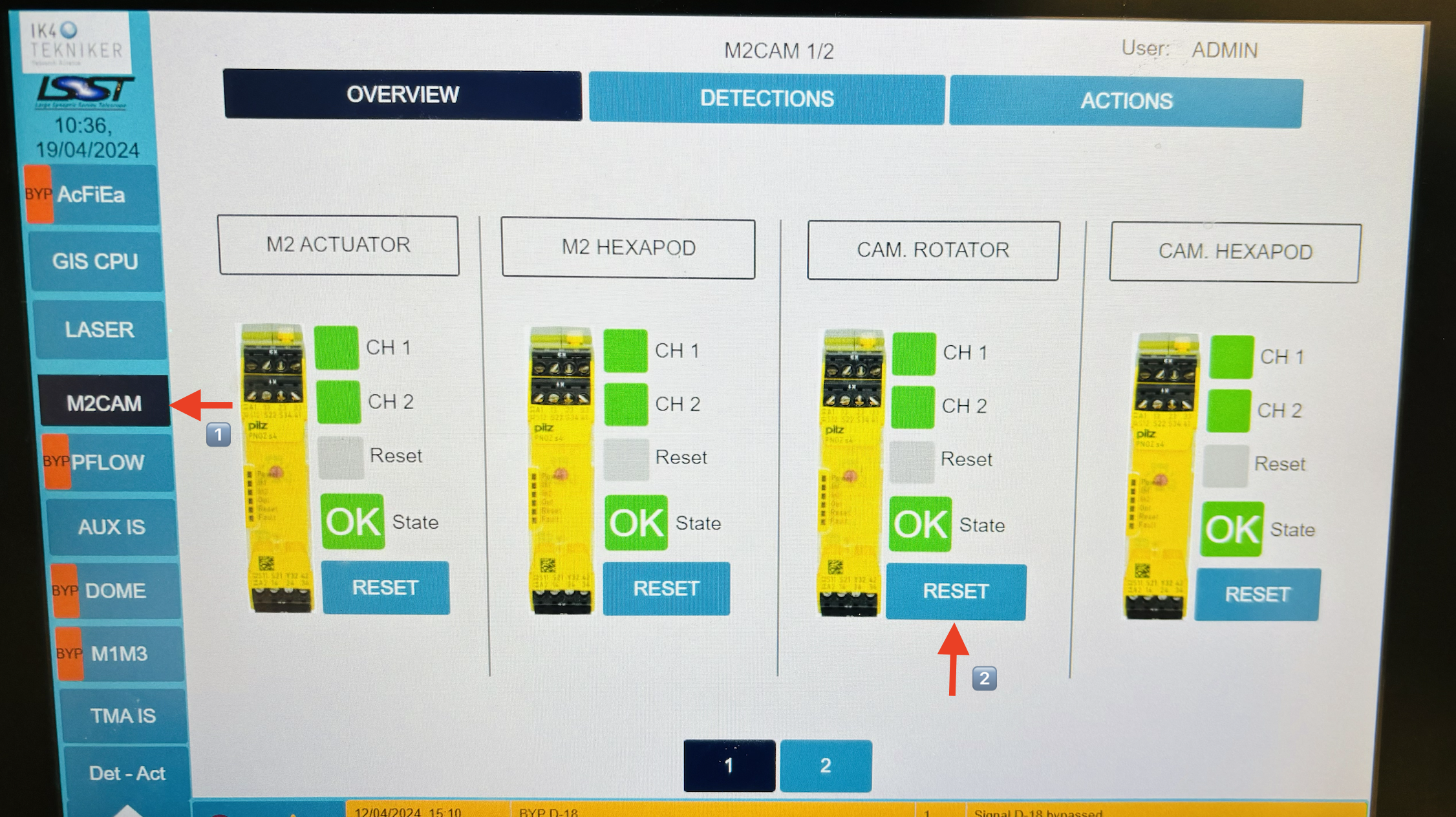
IMPORTANT: Interlock Due to CCW Limits
If the interlocks activated due to the rotator being out of range with the CCW, make sure to follow the steps on MTRotator CCW Limit Switches and Pull Cord Alarms before clearing the interlocks on the GIS.
Transition MTRotator CSC back to
ENABLED.set_summary_state.py¶data: - [MTRotator, ENABLED]
Post-Condition
MTRotator is operational and can be re-enabled from LOVE to safely continue operations.
Contingency
If the above procedure was not successful, announce in the #summit_simonyi channel.
MTRotator PXI Controller Reboot
In case EUI/CSC control is not connecting, you may need to proceed with the control system restart procedure of the MTRotator and MTHexapods PXI controller Reboot (Soft, Hard and Control System Restart).
MTRotator Locking Pin Engaged
On rare occasions, the Safety Interlock fault may remain when attempting to
clear the low-level interlocks.
If the safety interlock does not clear, it might be due to the rotator pin
not being disengaged properly. Instructions on removing the rotator locking pin are
located in the MTRotator Unlock Locking Pin
page on Confluence.